 Capture Pro
Capture Pro / Guides
How to black out text in a screenshot before you share it
Cover it with a solid block of colour. Not a blur, not a highlighter. Here is why that matters, and the quickest way to do it.
Why blurring is not enough
Blurring or pixelating text reduces its detail, but what is left is still made from the original. When the font and size are known, which they usually are on a web page, pixelated text can sometimes be worked out by trying likely words until the pixelation matches. Tools that do this have been published.
A highlighter, or any see-through shape, is worse. The text underneath often stays readable, especially once someone adjusts the brightness.
A solid, fully opaque box replaces the pixels. There is nothing left to recover.
Watch out for cropping, too
In 2023 it emerged that two widely used screenshot tools, the Windows Snipping Tool and the Markup editor on Google Pixel phones, could leave the cropped-out part of an image inside the saved file. Both were fixed, but it was a good reminder that what you see on screen is not always all that gets saved.
Capture Pro draws the final image fresh from what is on screen each time you save, so anything cropped away or blacked out is not in the file at all.
Black it out with Capture Pro
- Capture the page: whole page, what is on screen, or a dragged area.
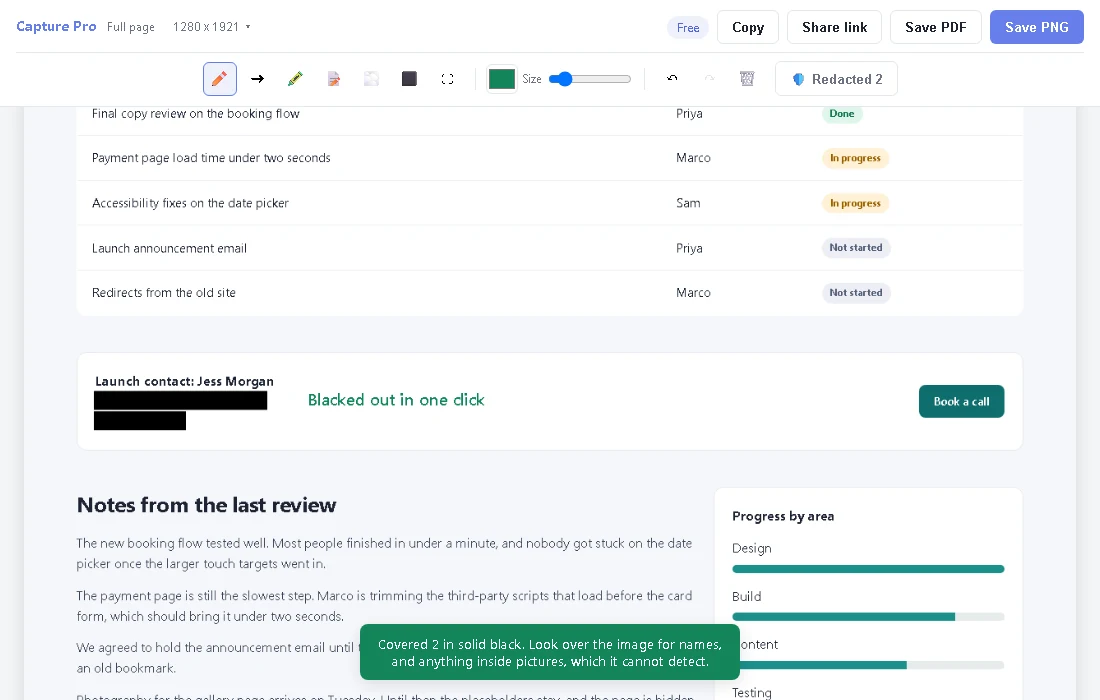
- If the page had email addresses, phone numbers, card numbers or street addresses in its text, the editor shows a black Redact found button. One click covers all of them in solid black. One undo brings them all back.
- For anything else, like a name, press R and drag a box over it.
- Look over the image before you share it. The detector reads the page's text, so it cannot see text inside pictures.
- Save it as PNG or PDF, copy it, or send it as a link.
Your details stay with you. The check runs in your browser while the page is captured. Only the position of each detail in the image is kept, so the editor knows where the boxes go. The text itself is never stored or sent anywhere.
Without an extension
Any image editor will do it, as long as you use a filled shape at full opacity rather than a pen or highlighter, and you save the result as a new image. If you are cropping as well, crop first and save a fresh copy, rather than relying on the crop alone.