 Capture Pro
Chrome extension · free, no daily limit
The whole page, minus the private bits.
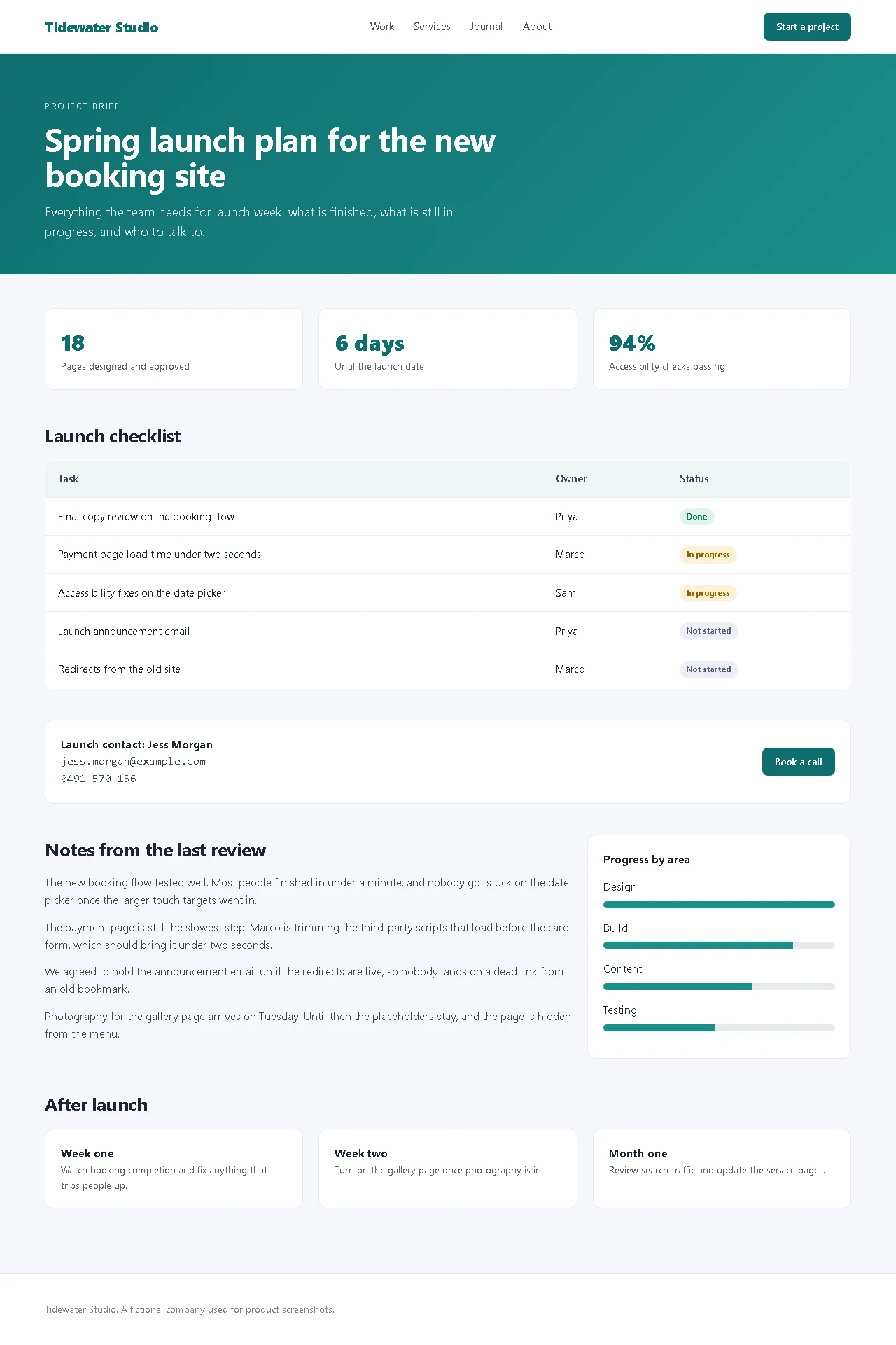
Capture Pro screenshots an entire page, finds the details you would not want to share, like and , and blacks them out in one click. Then save it, or send it as a link.
No account. No watermark. Your screenshots stay on your device.
Capture
Three ways to capture, one shortcut each.
Or right-click any page. The editor opens in its own tab, not a cramped popup.
Full page
Scrolls and stitches the whole page. Sticky headers appear once at the top instead of repeating down the image, and pages that load more as you scroll are followed as they grow.
Alt Shift FVisible area
Exactly what is on screen. Set a 3, 5 or 10 second timer to open a menu or tooltip before it fires.
Alt Shift VSelected area
Drag a box around just the part you need. Sized correctly on high resolution and scaled displays.
Alt Shift SRedact
Found, and blacked out, in one click.
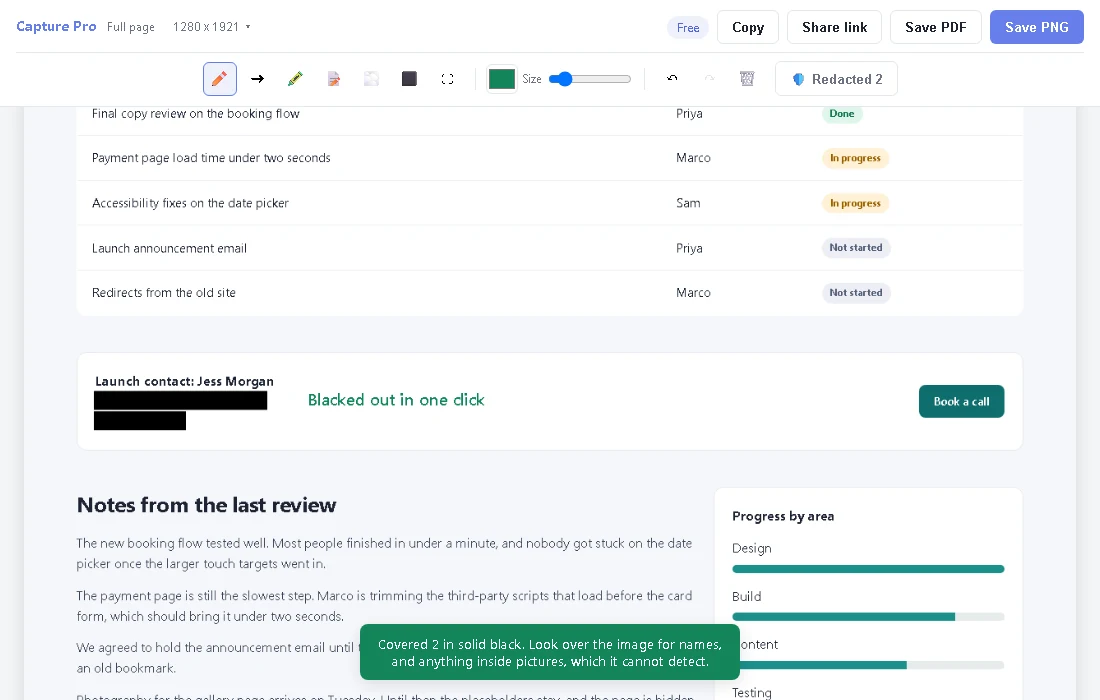
When you capture a page, Capture Pro looks for email addresses, phone numbers, card numbers and street addresses in its text. The editor offers to cover every one of them at once.
- Solid black, not a blur. Nothing of what was underneath is left in the saved image.
- One undo brings them all back, if you wanted one visible after all.
- Drag over anything else, like a name, to black it out too.
- Found on your device. Only the position of each one is kept, never the text.
It reads the text of the page, so it cannot see text inside pictures. Look over the image before you share it.
Everything else
A proper editor, and the awkward pages too.
Annotate
Arrows, text, highlights and freehand drawing. Crop and resize without leaving the editor, and undo anything.
Web apps
In email, chat and dashboard apps the content scrolls inside a panel. Capture Pro finds that panel and captures it top to bottom. How it works
PNG or PDF
Save as PNG, or as a PDF with long pages split across A4 pages. Lossless either way, so text stays sharp. More
Stops when you say
Press Esc to stop any capture part way through. The page goes back exactly where you had it.
Send it as a link. Nobody signs up.
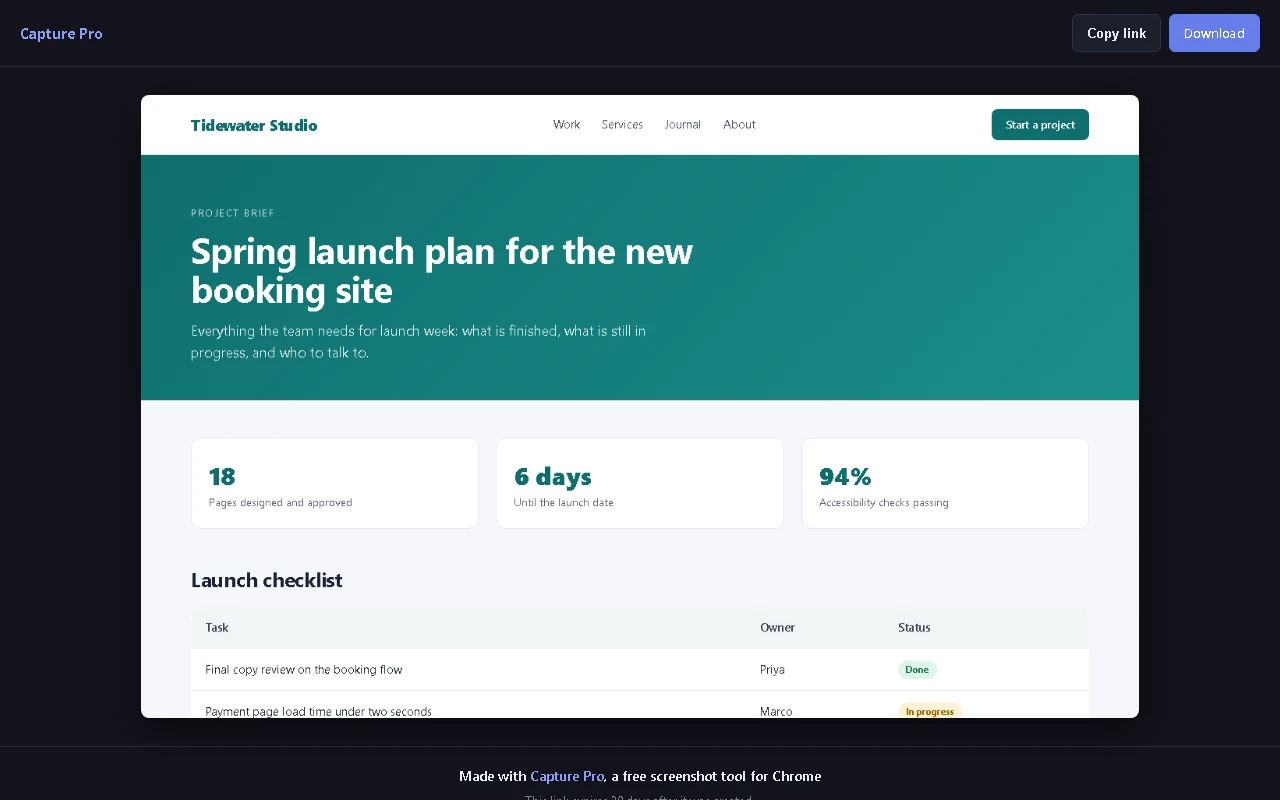
One click uploads the screenshot and copies a link. Whoever you send it to just opens it, with no account and no app.
- Shows a preview when pasted into chat apps
- Deleted automatically after 30 days
- Black out private details first, in the same editor
Pricing
Free to use. Pay once to share.
No subscription, ever. Pro is one payment.
Free
- Full page, visible and selected area capture
- The full editor, with redaction
- Save as PNG or PDF, copy to clipboard
- No daily limit, no watermark
Pro
- Everything in Free
- Share links anyone can open
- One payment, keep it for good
- Works offline for up to 30 days at a time
Questions
Good to know.
Where do my screenshots go?
Nowhere, unless you create a share link. Your last 50 are kept on your own device, the most recent 5 can be reopened from the popup, and Save puts a copy in your Downloads folder.
Is the free version actually free?
Yes. Capturing, editing, redacting and saving have no daily limit and no watermark. Pro adds share links, because those are stored online and cost money to run.
What does it do with the details it finds?
Nothing leaves your device. The check runs in your browser while the page is captured, and only the position of each detail in the screenshot is kept, so the editor knows where to put the black boxes. The text itself is never stored.
Which pages can't be captured?
Chrome does not let any extension capture its own pages, like settings and the Chrome Web Store. Everything else works, including web apps that scroll inside a panel.
Does it work in Microsoft Edge?
Yes. Edge can install extensions from the Chrome Web Store once you allow extensions from other stores, which Edge offers to switch on when you visit the store.
More answers on the help page.