 Capture Pro
Capture Pro / Guides
How to take a full page screenshot in Chrome
Chrome can do it on its own, tucked away in its developer tools. An extension is quicker, and copes with the pages that trip the built-in way up. Here are both.
Without installing anything
- Open the page you want.
- Press Ctrl Shift I to open DevTools. On a Mac, Cmd Option I.
- Press Ctrl Shift P to open the command menu. On a Mac, Cmd Shift P.
- Type full size and choose Capture full size screenshot. A PNG of the whole page lands in your Downloads folder.
Where it falls short. DevTools lays the page out at its full height in one go rather than scrolling it. Sections sized to the height of the screen can stretch, images that only load as you scroll may come out blank, and web apps that scroll inside a panel, like Gmail, come out as just one screen. There is no way to mark anything up or hide private details before you save.
With Capture Pro
- Add Capture Pro to Chrome. It is free.
- On the page, press Alt Shift F, or click the Capture Pro icon and choose Full page.
- It scrolls down the page a screen at a time and stitches the screens together. Headers that follow you down the page appear once, at the top, instead of on every screen.
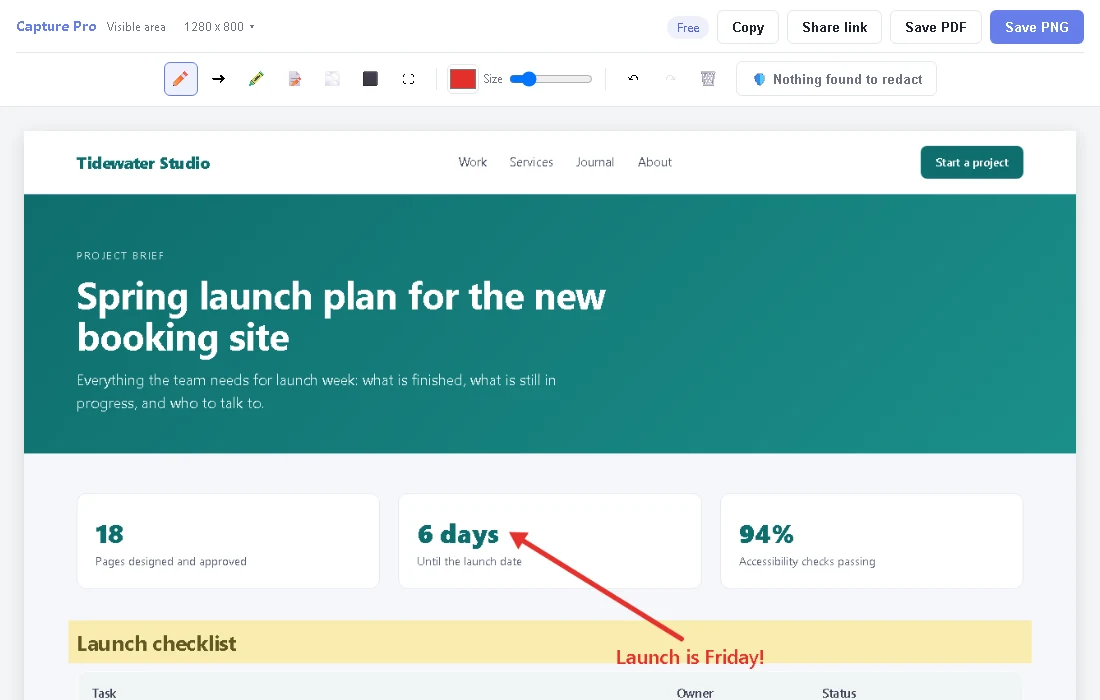
- The editor opens with the whole page. Add arrows or notes, black out anything private, then Save PNG or Save PDF.
editor
Tips for awkward pages
- Feeds that keep loading. Social feeds never really end. Capture Pro follows a page as it grows, up to half as long again as it was when you started, then stops and tells you.
- Very long pages. A capture stops after 40 screens, or when it reaches the largest image Chrome can create, and says so.
- Menus and tooltips. Set the timer in the popup to 3, 5 or 10 seconds, start the capture, then open the menu before it fires.
- Changed your mind? Press Esc to stop. The page goes back to where you had it.
- Web apps. In email and chat apps the content scrolls inside a panel. See capturing Gmail and ChatGPT.